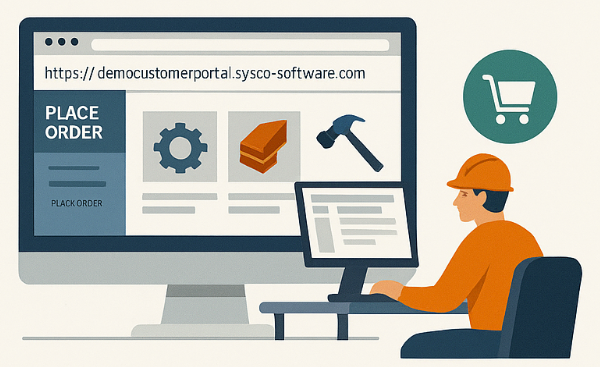
How to Raise an Order via the Customer Portal
Please find below the step-by-step instructions for raising an order using the EdgeGrpup's Customer Portal.
| Step | Description |
|---|---|
| 1. Login | - Open the portal: EdgeGroup Customer Portal - Enter your username and password. - If you do not have an account, click Register or contact your system administrator. |
| 2. Navigate to Orders | - From the homepage, select Orders or Place Order. - A shortcut may also appear on your dashboard as New Order. |
| 3. Select Products or Services | - Browse the catalogue or use the search bar. - Select the required items and add them to your basket/cart. |
| 4. Review Basket | - Open your basket/cart and confirm products, quantities, and prices. - Adjust items if needed. |
| 5. Enter Order Details | - Provide delivery address, purchase order number, or other required details. - Confirm billing details. |
| 6. Submit Order | - Click Submit Order. - A confirmation screen will display your order number. - A confirmation email will also be sent. |
| 7. Track Your Order | - Go to My Orders or Order History in the portal to view order status updates. |